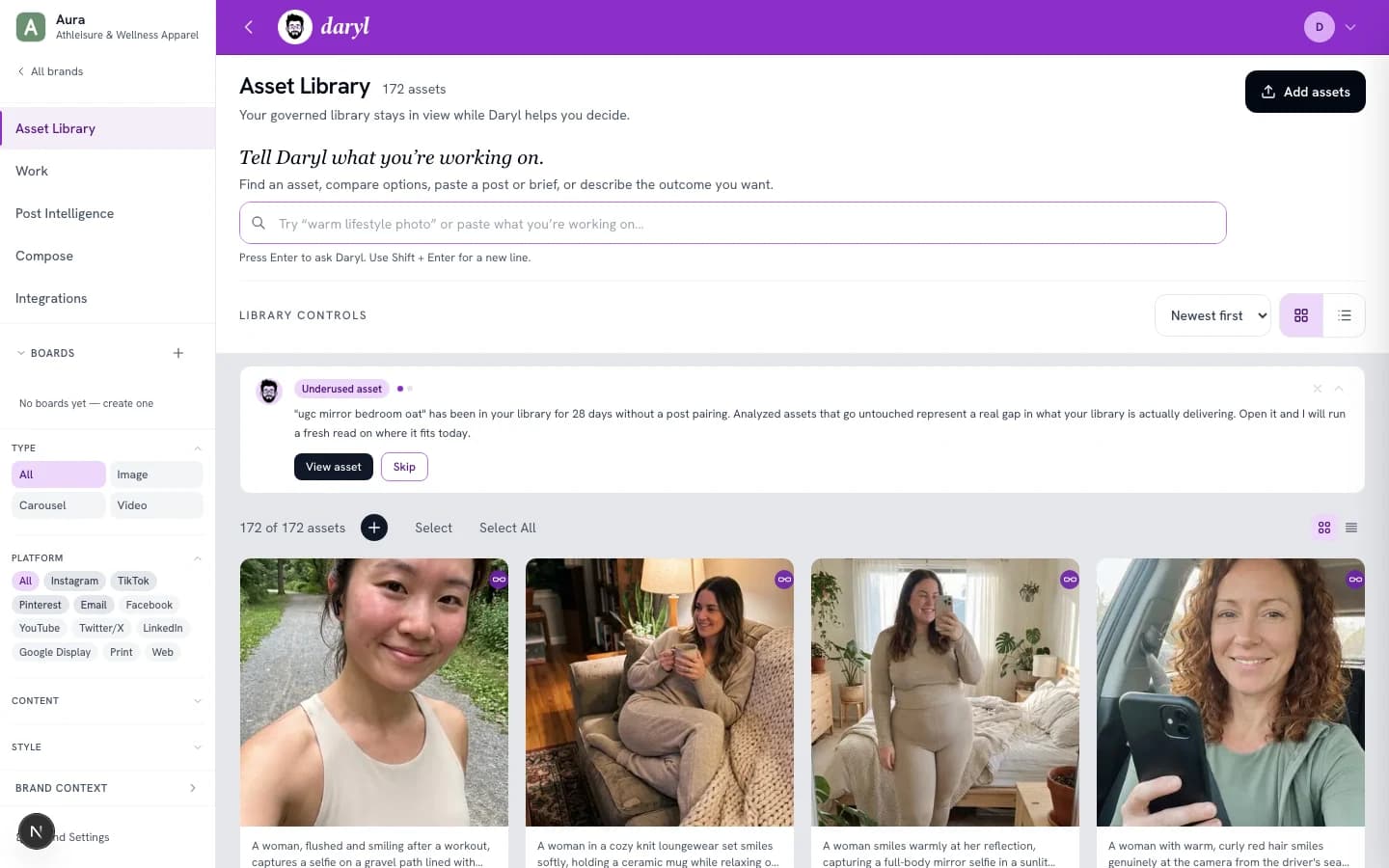
Describe the image you need or tell Daryl what you’re making. Library search and Post Intelligence offer separate ways to explore your existing assets. No formal brief needed.
▦Search your existing library.Fieldwork · fictional brand
Illustrative example · authored requests and results, not a live search. AI-generated sample assets.
⌕
Keep in view: ivory bottle · outdoors · black cap · no studio shots
Assets from the example libraryFind assets. Understand the fit.
Bottle by the stream
woodland.jpg
The ivory bottle and black cap are visible against an outdoor woodland background.
Details & checks
Brand + work: A close view of the bottle beside a stream gives the outdoor pause a product focus.
Check: Check the actual product and version before use. The hand and bottle dominate the frame.
A pause outdoors
trail-pause.webp
The ivory bottle and dark cap are visible on a rock beside the trail.
Details & checks
Brand + work: A seated person and foreground essentials suggest a break outdoors; the earthy colors fit the supplied brand direction.
Check: AI-edited framing; not a verified product photograph. Check product details before use.
Along the trail
take-the-long-way.webp
A carried ivory bottle appears in an outdoor trail scene. It is smaller in the frame.
Details & checks
Brand + work: The person, winding trail and natural light support an everyday outdoor story.
Check: The bottle is less prominent. Inspect product detail and the final crop.
Brand context adds relevance. Fieldwork’s supplied direction: natural light, earthy colors, everyday outdoors. It helps assess fit; it does not override the requested product, color or exclusions.
Example requests are fixed. In the product, image descriptions use Library search; social post ideas use Post Intelligence. These are separate workflows.
01
Describe an image or the work.
Look for a remembered shot, describe an image, or explain a post idea. Include products, colors, versions and exclusions that matter.
02
Explore existing assets.
Use Library search for image descriptions. For a social post or idea, use Post Intelligence to review recommendations and reasons grounded in the active brand.
03
Make the call.
Compare visible evidence, fit for this direction and meaningful tradeoffs. You choose what to use.
From your library to a choice you can check.
Start with a few supported images and review your Brand Context. Try a remembered asset, a description, or a real post idea in the appropriate workflow. Inspect the candidates and available reasons. Check literal requirements before choosing; a file can fit the brand without fitting this request.
Your next step depends on the work: inspect an asset, collect choices on a board, or download or open its source where supported. Draft creation is a separate workflow. The authored example above illustrates finding; it does not demonstrate live product actions.
The library behind the choice
A smart DAM starts with your assets.
Use DAMdaryl as your complete library, or connect a supported source. Keep the source details, search controls and asset inspection alongside the recommendation.
Brand Context supplies the direction your team wants Daryl to apply. Post Intelligence is a social recommendation workflow within that broader library.